# BLE Serial Pro — Manual
Version 3.9.0 · iPhone, iPad and Mac
BLE Serial Pro is a serial (UART) terminal for Bluetooth Low Energy modules. It
talks to CC2541 boards such as the HM-10, AT-09, MLT-BT05 and JDY-08, and to
anything using the Nordic UART Service — nRF52 modules, and Arduino, Raspberry Pi
Pico and ESP32 projects that implement it.
> **A note on the free versions**
> Everything marked **\*** in this manual is only in BLE Serial Pro. The two free
> apps — **BLESerial** (CC2541/HM-10) and **BLE Serial nRF52** — have the same
> console, alerts and settings, but no Functions tab, and each is locked to one
> chip family. A summary is at the end.
---
## Contents
1. [Finding and connecting to a device](#1-finding-and-connecting-to-a-device)
2. [The console](#2-the-console)
3. [Display options](#3-display-options)
4. [Input options](#4-input-options)
5. [Functions \*](#5-functions-)
6. [Alerts](#6-alerts)
7. [App settings](#7-app-settings)
8. [On the Mac](#8-on-the-mac)
9. [What the free versions leave out](#9-what-the-free-versions-leave-out)
---
## 1. Finding and connecting to a device
The app starts scanning as soon as it opens. Each row shows the device name, the
services it advertises, its manufacturer data, and a signal-strength bar that is
colour-coded from red (weak) to green (strong).
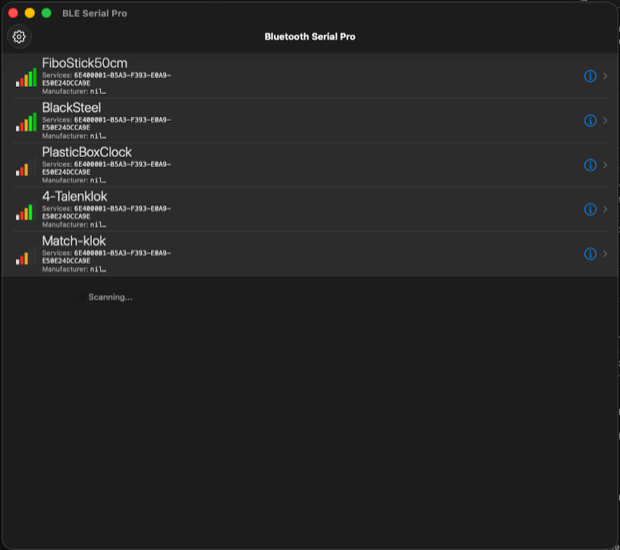 **Tap a row to connect.** A padlock appears on any device that is advertising but
will not accept a connection.
The list is sorted by name, so a device always sits in the same place. If one
stops advertising it fades rather than disappearing, and brightens again when it
comes back — so a device that drops out for a moment does not make the list jump
around. Anything unheard from for 30 seconds is removed.
Tap the **ⓘ** button on a row instead of the row itself to open the Bluetooth
explorer, which lists every service, characteristic and descriptor the device
offers, along with its properties. This is useful when a module does not work and
you need to find out which UUIDs it actually uses.
---
## 2. The console
**Tap a row to connect.** A padlock appears on any device that is advertising but
will not accept a connection.
The list is sorted by name, so a device always sits in the same place. If one
stops advertising it fades rather than disappearing, and brightens again when it
comes back — so a device that drops out for a moment does not make the list jump
around. Anything unheard from for 30 seconds is removed.
Tap the **ⓘ** button on a row instead of the row itself to open the Bluetooth
explorer, which lists every service, characteristic and descriptor the device
offers, along with its properties. This is useful when a module does not work and
you need to find out which UUIDs it actually uses.
---
## 2. The console
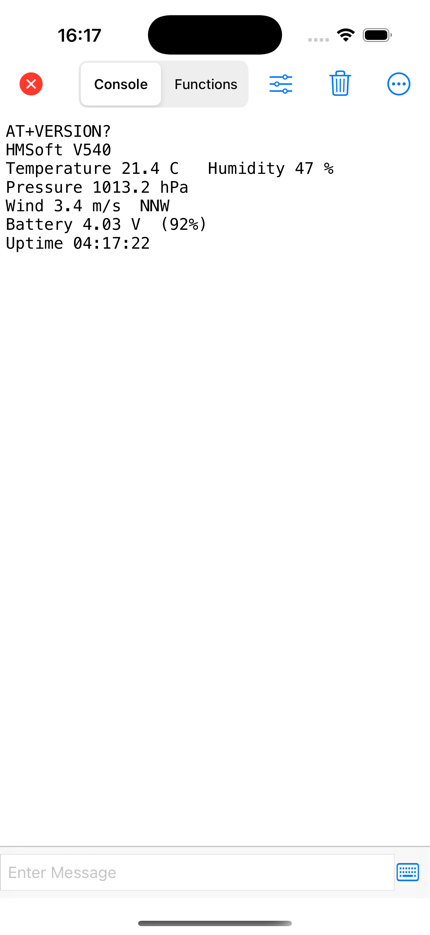
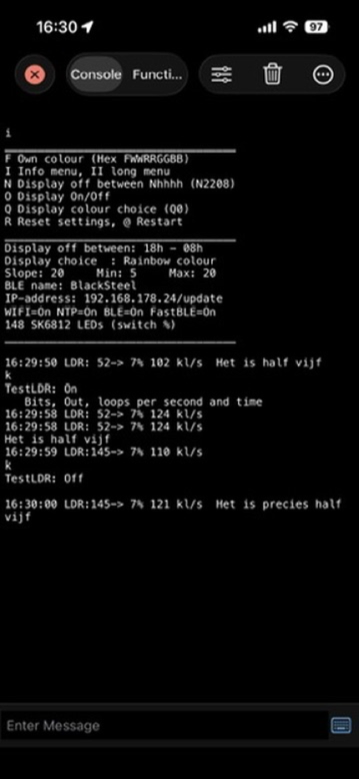 Everything received appears here. Type in the field at the bottom and press
return to send.
The toolbar across the top:
| Control | What it does |
|---|---|
| **✕** | Disconnect and go back to the scan list |
| **Console / Functions** | Switch between the console and the buttons grid **\*** |
| **Sliders** | Display options (below) |
| **Bin** | Clear the screen |
| **•••** | Share the console contents, and on iPhone reach Alerts |
Sent messages are shown with a tinted background so you can tell them from
received data, if you switch that on in Display options.
### Sharing what you captured
The **•••** button offers two exports:
- **Export Plain Text** — the console as plain text.
- **Export Attributed Text** — keeps the font and the colouring of sent lines.
Both open the standard share sheet, so you can mail the log, drop it into Files,
or send it to another app. On the Mac you get a normal Save panel.
---
## 3. Display options
Everything received appears here. Type in the field at the bottom and press
return to send.
The toolbar across the top:
| Control | What it does |
|---|---|
| **✕** | Disconnect and go back to the scan list |
| **Console / Functions** | Switch between the console and the buttons grid **\*** |
| **Sliders** | Display options (below) |
| **Bin** | Clear the screen |
| **•••** | Share the console contents, and on iPhone reach Alerts |
Sent messages are shown with a tinted background so you can tell them from
received data, if you switch that on in Display options.
### Sharing what you captured
The **•••** button offers two exports:
- **Export Plain Text** — the console as plain text.
- **Export Attributed Text** — keeps the font and the colouring of sent lines.
Both open the standard share sheet, so you can mail the log, drop it into Files,
or send it to another app. On the Mac you get a normal Save panel.
---
## 3. Display options
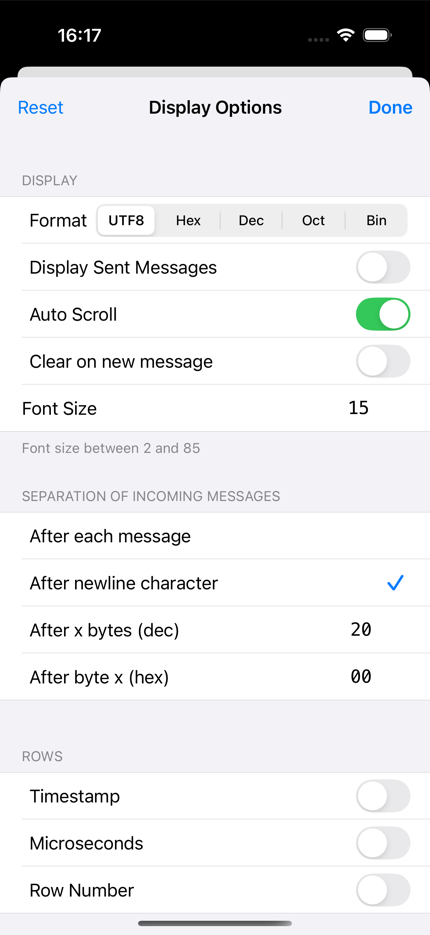 | Setting | Notes |
|---|---|
| **Format** | Show incoming bytes as UTF8, Hex, Dec, Oct or Bin |
| **Display Sent Messages** | Echo what you send into the console |
| **Auto Scroll** | Follow the newest line |
| **Clear on new message** | Show only the most recent message — useful for a device that reports one reading at a time |
| **Font Size** | 2 to 85 point |
| **Separation of incoming messages** | When to start a new line: after each message, after a newline character, after a fixed number of bytes, or after a specific byte value |
| **Timestamp / Microseconds / Row Number** | Extra columns down the left of each line |
| **Play Soundeffects** | A sound on send and receive |
The line-separation setting is the one worth understanding. BLE delivers data in
packets that do not necessarily line up with the lines your device is sending. If
your output looks broken up, set separation to **after newline character** and it
will be reassembled properly.
---
## 4. Input options
| Setting | Notes |
|---|---|
| **Format** | Show incoming bytes as UTF8, Hex, Dec, Oct or Bin |
| **Display Sent Messages** | Echo what you send into the console |
| **Auto Scroll** | Follow the newest line |
| **Clear on new message** | Show only the most recent message — useful for a device that reports one reading at a time |
| **Font Size** | 2 to 85 point |
| **Separation of incoming messages** | When to start a new line: after each message, after a newline character, after a fixed number of bytes, or after a specific byte value |
| **Timestamp / Microseconds / Row Number** | Extra columns down the left of each line |
| **Play Soundeffects** | A sound on send and receive |
The line-separation setting is the one worth understanding. BLE delivers data in
packets that do not necessarily line up with the lines your device is sending. If
your output looks broken up, set separation to **after newline character** and it
will be reassembled properly.
---
## 4. Input options
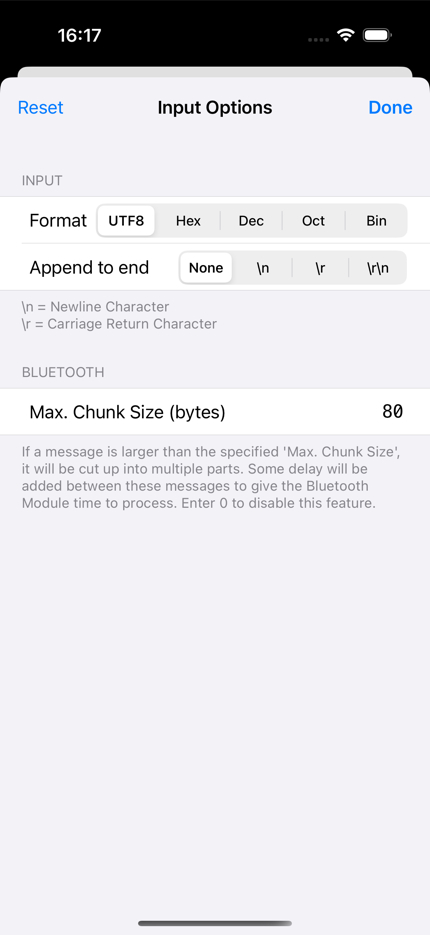 | Setting | Notes |
|---|---|
| **Format** | How to interpret what you type: UTF8, Hex, Dec, Oct or Bin |
| **Append to end** | Add `\n`, `\r` or `\r\n` to everything you send |
| **Max. Chunk Size** | Long messages are split into pieces of this size, with a short pause between them, so a slow module has time to keep up. 80 bytes by default; enter 0 to disable |
If your device expects each command to end in a newline, set **Append to end**
once and you never have to think about it again.
---
## 5. Functions \*
**Not in the free versions.**
| Setting | Notes |
|---|---|
| **Format** | How to interpret what you type: UTF8, Hex, Dec, Oct or Bin |
| **Append to end** | Add `\n`, `\r` or `\r\n` to everything you send |
| **Max. Chunk Size** | Long messages are split into pieces of this size, with a short pause between them, so a slow module has time to keep up. 80 bytes by default; enter 0 to disable |
If your device expects each command to end in a newline, set **Append to end**
once and you never have to think about it again.
---
## 5. Functions \*
**Not in the free versions.**
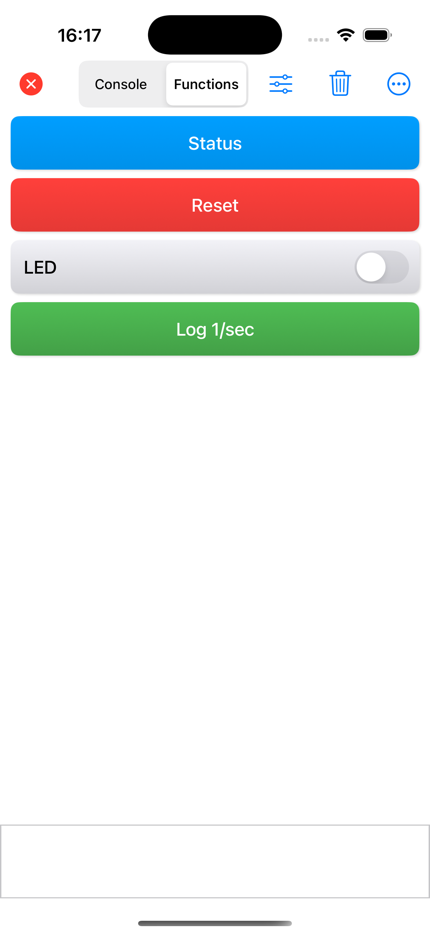
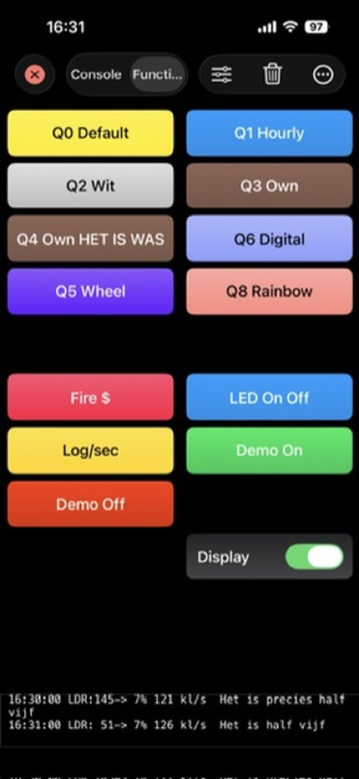 The Functions tab is a grid of buttons that send messages you have set up in
advance, so you do not have to type a command twice.
Along the bottom is a **live console strip** showing the most recent traffic —
three lines on iPhone and iPad, seven on the Mac — so you can watch a device
respond without leaving the grid.
A button sends when you **lift your finger inside it**, so if you land on the
wrong one you can slide your finger off and nothing is sent.
**Long-press a button and drag** to move it to a new position in the grid.
Dragging never sends the message. A button with **Repeat** set is the exception:
it starts firing on the press itself, so it cannot be dragged here — reorder
those from the Edit Functions list.
### Editing functions
Tap the sliders button while the Functions tab is showing.
The Functions tab is a grid of buttons that send messages you have set up in
advance, so you do not have to type a command twice.
Along the bottom is a **live console strip** showing the most recent traffic —
three lines on iPhone and iPad, seven on the Mac — so you can watch a device
respond without leaving the grid.
A button sends when you **lift your finger inside it**, so if you land on the
wrong one you can slide your finger off and nothing is sent.
**Long-press a button and drag** to move it to a new position in the grid.
Dragging never sends the message. A button with **Repeat** set is the exception:
it starts firing on the press itself, so it cannot be dragged here — reorder
those from the Edit Functions list.
### Editing functions
Tap the sliders button while the Functions tab is showing.
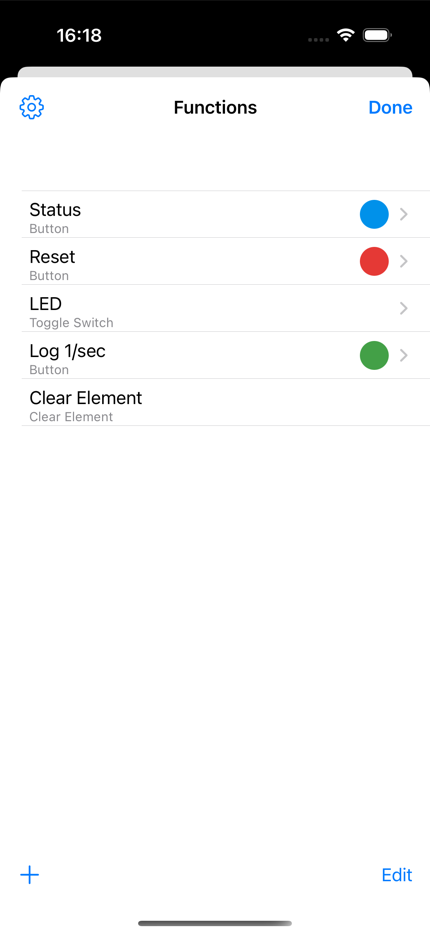
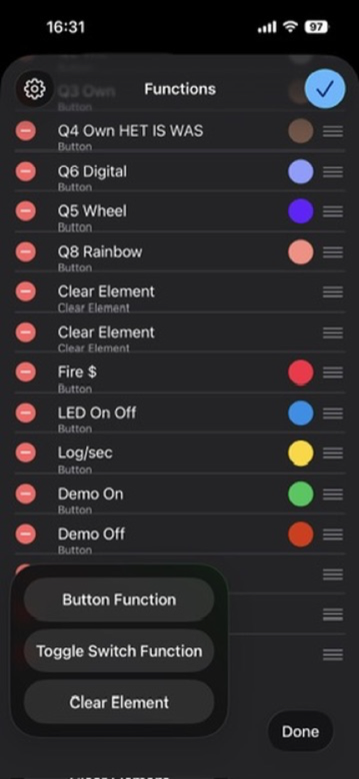
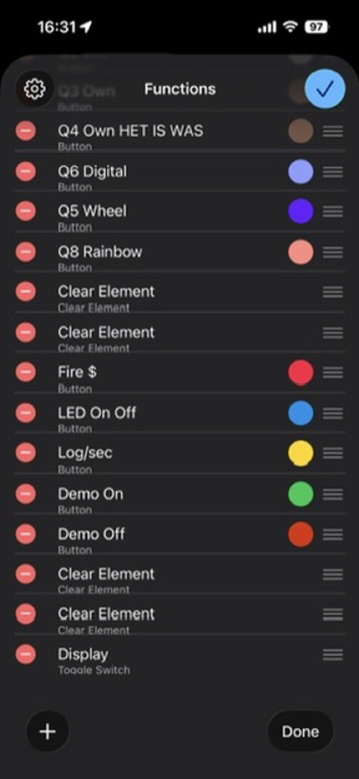 Use **+** to add one, **Edit** to reorder or delete, and tap a row to change it.
There are three kinds:
**Button** — sends one message when pressed.
Use **+** to add one, **Edit** to reorder or delete, and tap a row to change it.
There are three kinds:
**Button** — sends one message when pressed.
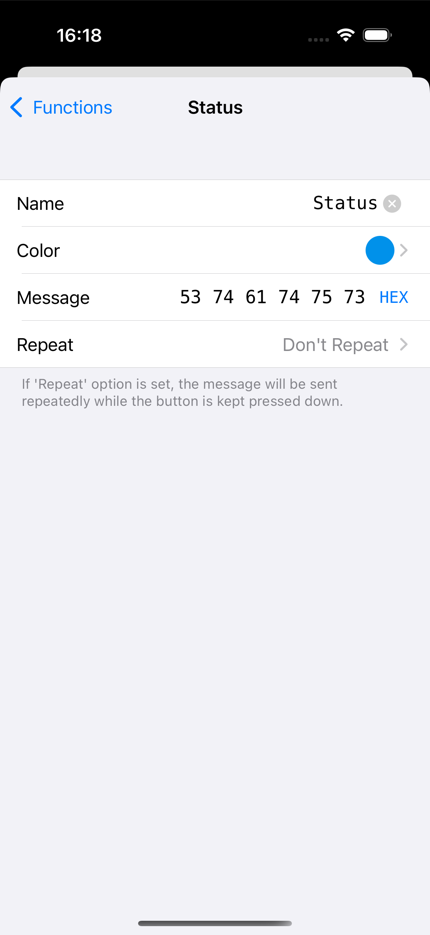 | Field | Notes |
|---|---|
| **Name** | The label on the button |
| **Colour** | Choose from a palette; the label switches between black and white for contrast |
| **Message** | The payload, in whichever format you pick with the button on the right |
| **Repeat** | Off, or 1, 2, 5 or 10 times a second for as long as the button is held down |
**Toggle Switch** — sends one message when switched on and a different one when
switched off. Good for anything with two states, such as a light or a relay.
| Field | Notes |
|---|---|
| **Name** | The label on the button |
| **Colour** | Choose from a palette; the label switches between black and white for contrast |
| **Message** | The payload, in whichever format you pick with the button on the right |
| **Repeat** | Off, or 1, 2, 5 or 10 times a second for as long as the button is held down |
**Toggle Switch** — sends one message when switched on and a different one when
switched off. Good for anything with two states, such as a light or a relay.
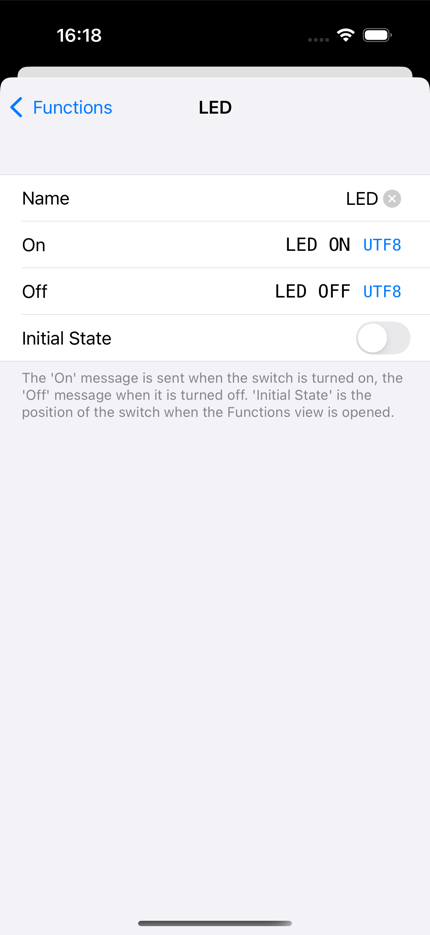 The **Initial State** is the position the switch shows when the Functions tab is
opened.
**Clear Element** — not a button at all, just a gap you can place in the grid to
group related buttons together.
### Sharing your buttons \*
**Export Functions** in App Settings writes all of your buttons to a JSON file
you can send to another device; **Import Functions** reads one back, either
adding to what you have or replacing it. On the Mac you get a Save panel, so you
can put the file anywhere, including iCloud Drive.
---
## 6. Alerts
An alert watches the incoming data for a pattern you choose and reacts when it
appears — useful for a device that only occasionally reports something you care
about.
Each alert has a **trigger** (in any of the supported formats), an optional
**sound** from eleven built in, and a switch for whether to show a popup. Alerts
can be turned off individually without deleting them.
Reach them with the **•••** button on iPhone, or the bell in the toolbar on iPad
and Mac.
---
## 7. App settings
The gear on the scan screen.
The **Initial State** is the position the switch shows when the Functions tab is
opened.
**Clear Element** — not a button at all, just a gap you can place in the grid to
group related buttons together.
### Sharing your buttons \*
**Export Functions** in App Settings writes all of your buttons to a JSON file
you can send to another device; **Import Functions** reads one back, either
adding to what you have or replacing it. On the Mac you get a Save panel, so you
can put the file anywhere, including iCloud Drive.
---
## 6. Alerts
An alert watches the incoming data for a pattern you choose and reacts when it
appears — useful for a device that only occasionally reports something you care
about.
Each alert has a **trigger** (in any of the supported formats), an optional
**sound** from eleven built in, and a switch for whether to show a popup. Alerts
can be turned off individually without deleting them.
Reach them with the **•••** button on iPhone, or the bell in the toolbar on iPad
and Mac.
---
## 7. App settings
The gear on the scan screen.
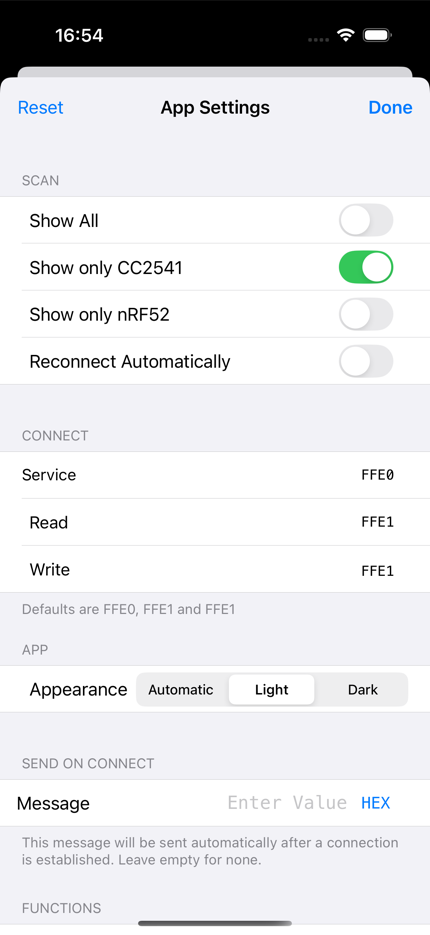 **Scan** — decide what appears in the list.
| Switch | Effect |
|---|---|
| **Show All** | Every BLE device in range, whatever it advertises |
| **Show only CC2541** | HM-10 and compatibles, and fills in FFE0 / FFE1 / FFE1 below |
| **Show only nRF52** \* | Nordic UART Service, and fills in the 6e400001 / 6e400003 / 6e400002 UUIDs |
| **Reconnect Automatically** | Reconnect to the last device as soon as it is seen again |
The two chip switches are shortcuts: they set the three UUIDs underneath for you.
You can always type your own instead, which is what to do for a module that uses
something non-standard.
**App** — **Appearance**: choose **Automatic**, **Light** or **Dark**. Automatic
follows the system setting, so the app turns dark when your phone or Mac does. The
choice is remembered, applies immediately, and is per app rather than per device.
**Connect** — the service, read and write UUIDs. Accepts a 4- or 8-digit short
form or a full 128-bit UUID.
**Send on connect** — a message sent automatically as soon as a connection is
established. Leave it empty for none.
**Functions** \* — Export and Import, described above.
The copyright notice sits at the very bottom of this screen.
---
## 8. On the Mac
The same app runs on macOS. Scanning, connecting, the console, alerts and
functions all work as they do on iPhone and iPad. Two differences worth knowing:
- The console strip under the Functions grid shows **seven** lines instead of
three, since there is more room.
- Exporting functions opens a real **Save panel**, so you can save anywhere,
including iCloud Drive.
The app follows the system appearance, so it is dark when macOS is dark.
---
## 9. What the free versions leave out
There are two free apps. Both share this app's console, display and input
options, alerts, Bluetooth explorer, editable UUIDs and Mac support.
| | BLESerial | BLE Serial nRF52 | BLE Serial **Pro** |
|---|:--:|:--:|:--:|
| CC2541 / HM-10 modules | ● | — | ● |
| Nordic nRF52 / UART Service | — | ● | ● |
| Console, alerts, explorer | ● | ● | ● |
| Runs on the Mac | ● | ● | ● |
| **Functions: custom buttons** | — | — | ● |
| **Functions: toggle switches** | — | — | ● |
| **Import / export of button profiles** | — | — | ● |
In the free apps the Functions tab is still there — tapping it explains what it
would do. Everything marked **\*** in this manual is in that column.
**Scan** — decide what appears in the list.
| Switch | Effect |
|---|---|
| **Show All** | Every BLE device in range, whatever it advertises |
| **Show only CC2541** | HM-10 and compatibles, and fills in FFE0 / FFE1 / FFE1 below |
| **Show only nRF52** \* | Nordic UART Service, and fills in the 6e400001 / 6e400003 / 6e400002 UUIDs |
| **Reconnect Automatically** | Reconnect to the last device as soon as it is seen again |
The two chip switches are shortcuts: they set the three UUIDs underneath for you.
You can always type your own instead, which is what to do for a module that uses
something non-standard.
**App** — **Appearance**: choose **Automatic**, **Light** or **Dark**. Automatic
follows the system setting, so the app turns dark when your phone or Mac does. The
choice is remembered, applies immediately, and is per app rather than per device.
**Connect** — the service, read and write UUIDs. Accepts a 4- or 8-digit short
form or a full 128-bit UUID.
**Send on connect** — a message sent automatically as soon as a connection is
established. Leave it empty for none.
**Functions** \* — Export and Import, described above.
The copyright notice sits at the very bottom of this screen.
---
## 8. On the Mac
The same app runs on macOS. Scanning, connecting, the console, alerts and
functions all work as they do on iPhone and iPad. Two differences worth knowing:
- The console strip under the Functions grid shows **seven** lines instead of
three, since there is more room.
- Exporting functions opens a real **Save panel**, so you can save anywhere,
including iCloud Drive.
The app follows the system appearance, so it is dark when macOS is dark.
---
## 9. What the free versions leave out
There are two free apps. Both share this app's console, display and input
options, alerts, Bluetooth explorer, editable UUIDs and Mac support.
| | BLESerial | BLE Serial nRF52 | BLE Serial **Pro** |
|---|:--:|:--:|:--:|
| CC2541 / HM-10 modules | ● | — | ● |
| Nordic nRF52 / UART Service | — | ● | ● |
| Console, alerts, explorer | ● | ● | ● |
| Runs on the Mac | ● | ● | ● |
| **Functions: custom buttons** | — | — | ● |
| **Functions: toggle switches** | — | — | ● |
| **Import / export of button profiles** | — | — | ● |
In the free apps the Functions tab is still there — tapping it explains what it
would do. Everything marked **\*** in this manual is in that column.